Submittals for Subcontractors
Submittals are used to submit documents, materials, and equipment for approval within the project team. The responsible Subcontractor submits attachments to the CPPI Submittal Manager.
Once a submittal item is created, it goes through various review and approval stages.
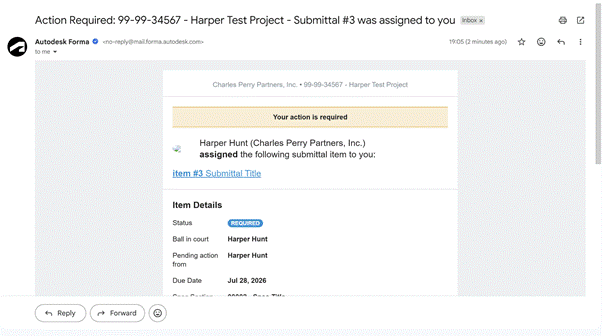
If assigned responsible for a submittal you will receive an email notification.

The submittal notification email will include item details of the assigned submittal.
Note: “Ball in court” references the owner of the step, while “pending action from” indicates the individual who needs to take the next step. The owner of a step could be a person, role, or company. “Ball in court” and “Pending action from” will be the same when an item is not in an active review step.
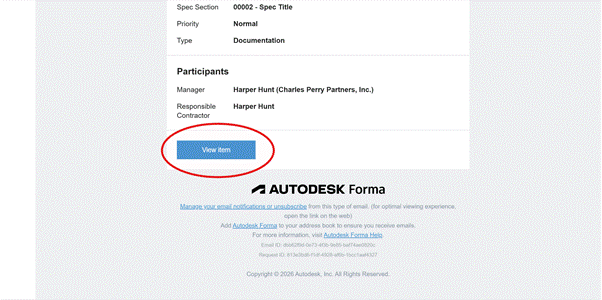
From the email you will be directly linked to the submittal through the “View form” button. You may be prompted to login to Autodesk Build.
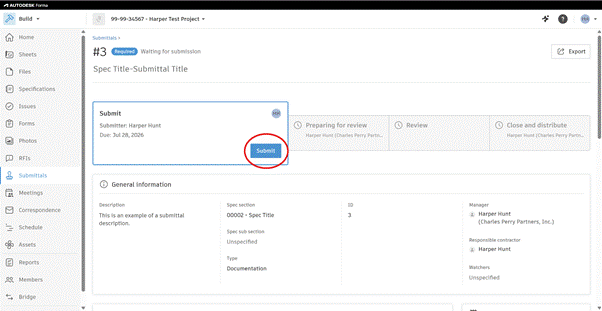
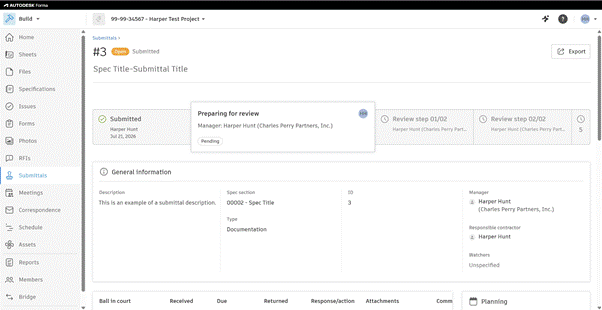
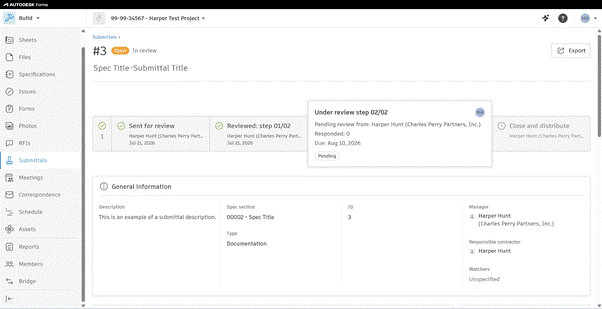
The workflow bar visually displays various stages of the submittal process: “Submit”, “Preparing for review”, “Review”, or “Close and distribute”.
The workflow bar allows you to quickly ascertain the progress of each submittal item.
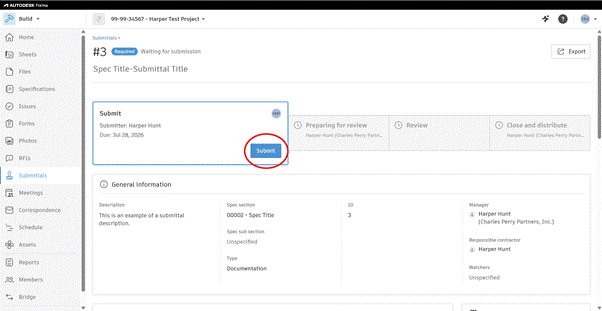
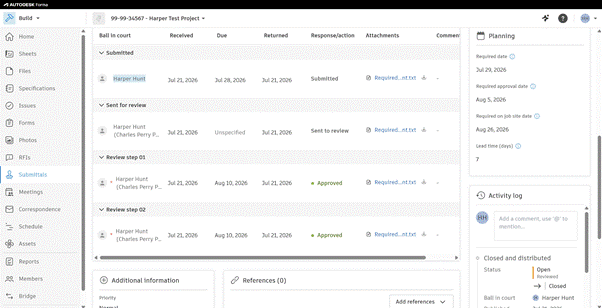
The workflow table summarizes the workflow with important dates, attachments, and comments. You can submit a submittal within the workflow bar or the workflow table via the submit button.
Clicking the submit button opens a “Submit to manager” window. From this window you can add attachments to the submittal, as well as any notes.
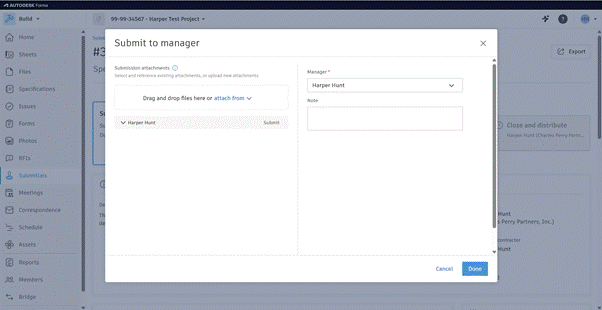
Attachments allow you to include supplemental documents and files along with submittal items. They can be used for reference or review purposes at different stages.
You can attach files to a submittal, such as PDFs, images, Revit models, spreadsheets, and more.
There are several ways to add attachments:
- Drag and drop files onto the attachments area when creating a submittal
- Click the attachments area to open a file browser and select files
- Once the submittal is created, attachments can be added in transitions (moving from one phase of the workflow to another).
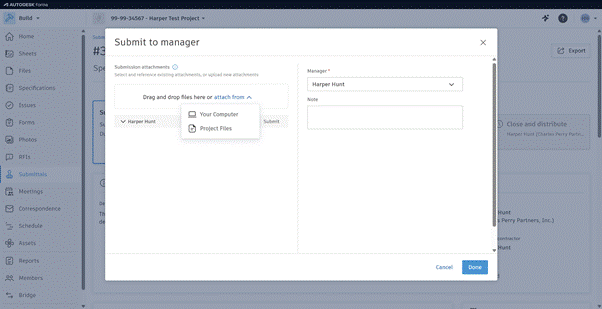
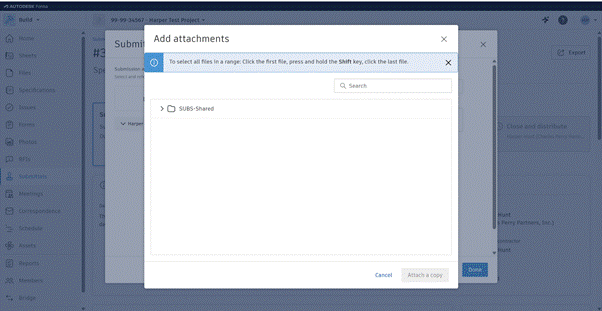
Note: Adding attachments from the Files tool creates a copy of the file within the individual submittal. The original file will remain unchanged.
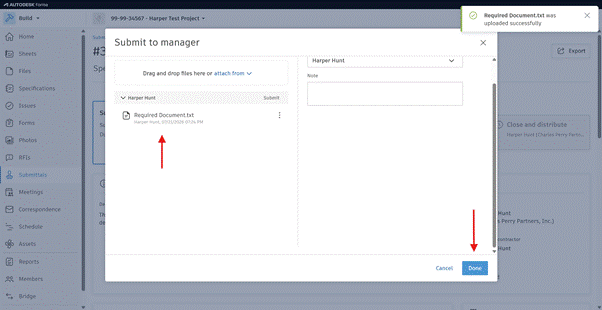
An attachment that was added successfully will be seen under the name of the person submitting. Click done when all necessary attachments have been added.
Once the submittal has been submitted the workflow bar will update to display the new workflow phase.
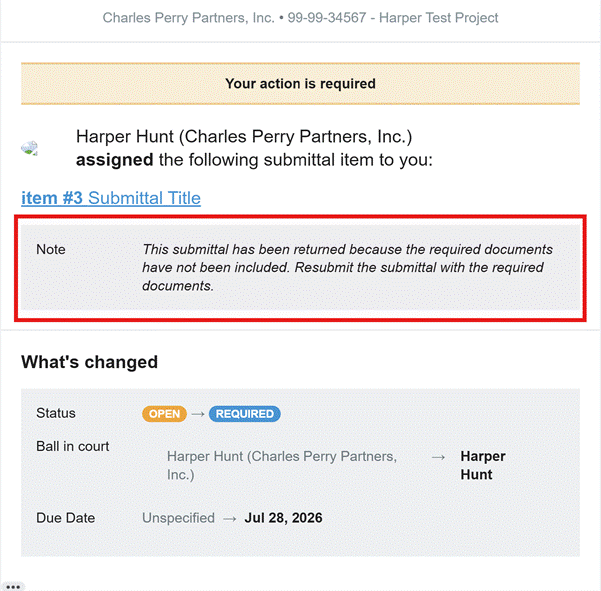
A submittal may be returned as “Revise and resubmit” to the responsible subcontractor if it is missing any information or requires correction. You may receive an email notification like the one seen below.
In the event that you need to respond to a “Revise and resubmit” your submittal, resubmit according to submittal requirements and any notes received.
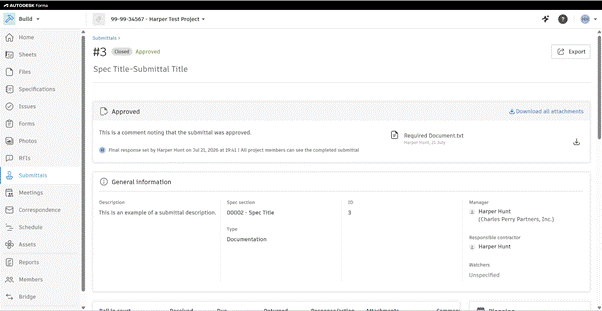
Once a submittal completes the review process, the submittal is determined to be: Approved, Approved as noted, Revise and Resubmit, and Rejected.
Next steps are determined by the submittal response.
Response Status | Action & Meaning |
Approved | The submittal meets the project requirements and design intent. The contractor can proceed with the work or fabrication. |
Approved as Noted | The submittal is generally acceptable, subject to the reviewer's comments. Work can proceed as long as the noted corrections are followed. |
Revise and Resubmit | The submittal does not comply with the design or requirements. The submitter must address the comments and send an updated file. |
Rejected | The submitted information or materials do not meet the project requirements. The submitter must provide a completely new, corrected submittal. |
An approved submittal is closed and the workflow table updates to reflect the changes.
If a submittal is “Approved” or “Approved as noted”, then the submittal process has been completed.
Was this article helpful?
That’s Great!
Thank you for your feedback
Sorry! We couldn't be helpful
Thank you for your feedback
Feedback sent
We appreciate your effort and will try to fix the article